
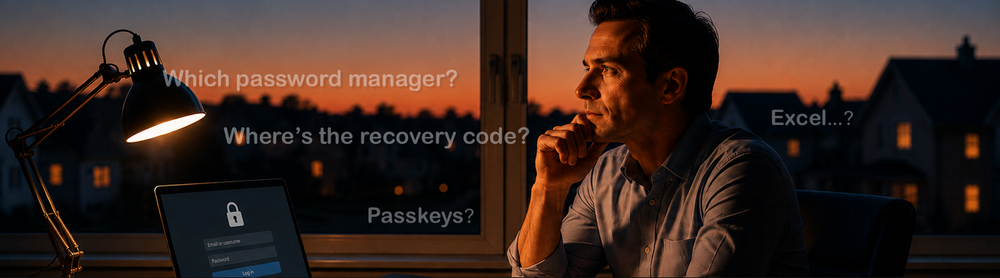
An Elephant’s Memory or “Passwords_FINAL.xlsx”? Password Managers Without the Marketing
An Elephant’s Memory or “Passwords_FINAL.xlsx”?
Password Managers Without the Marketing
I recently received a very good question:
“You write about cybersecurity, but how am I supposed to remember dozens of passwords for different websites? I use the Norton password manager included in my package. Is it safe?”
The answer is: probably, yes.
But don’t worry — this article will not consist of one sentence. That would finish far too quickly, and I would miss the opportunity to complain about Excel.
The biggest threat is not always a hacker
Sometimes the biggest threat is our own convenience.
I have seen passwords such as:
- Buddy1
- Buddy123
- Buddy123!
Each one was, of course, described as “very secure” because Buddy was a very large dog.
Other favourites include a child’s date of birth, the company name, or the word password with the letter “a” replaced by @.
Clever?
Not really. Password-cracking tools have seen that trick before. They probably know Buddy, his birthday and the name of his vet.
And sometimes no cracking tool is required at all.
I once told a colleague that I could probably work out the pattern behind her private email password within two weeks.
She was confident that the password was secure and casually mentioned that it was connected to the name of one of her two dogs.
The names alone were not enough.
A few days later, she arrived with both dogs. While playing with them, I asked when they were born.
And there it was.
A dog’s name combined with a date.
No dark room. No hooded hacker. No wall of flashing screens.
Just a friendly conversation, two dogs, and information that seemed completely harmless.
That is why password security is not only about the password itself. It is also about what we share in conversations, on social media, and in cheerful birthday posts saying:
“Our little Buddy is five today!”
To most people, that is a lovely photo.
To somebody trying to guess your password, it may be documentation.
Use random passwords generated by a password manager.
Your pets deserve attention, treats and long walks.
They do not need responsibility for protecting your email account.
An even greater classic is the unencrypted file:
All_Passwords_DO_NOT_OPEN.xlsx
It sits on the desktop, in Teams, on SharePoint or on a shared company drive. A year later, half the organisation can access it, along with a former employee and somebody who received the wrong sharing link by accident.
Then I hear:
“How on earth did somebody get into my account?”
It wasn’t magic.
Somebody opened the file.
Excel is excellent for tables, charts and proving to your manager that the budget definitely balances.
It is not a password vault.
One password for everything does not work either
Some people avoid Excel because they have a “better” system:
One extremely strong password for every account.
That is a bit like using the same key for your home, car, office, garage and safe.
Very convenient — until somebody copies it.
When one shop or online service is breached, criminals can automatically test the exposed login details against email accounts, social media and other popular services.
That is why every account should have a different, long and randomly generated password.
And this is where a password manager becomes useful.
Its job is not to remember one brilliant password that you use everywhere.
Its job is to create and store hundreds of different passwords that you do not even need to know.
You mainly need to remember one good master password for the vault.
Which password manager is the best?
Best for whom?
Choosing a password manager is a little like discussing pineapple on pizza. Some people love it. Others believe the authorities should become involved.
There are cloud-based solutions, local databases, free products, paid services, simple applications, and tools that make you understand why system administrators drink so much coffee.
A good password manager should:
- work across your devices
- be understandable
- allow you to export your data
- support MFA or passkeys
- provide a sensible recovery process
- be convenient enough that you actually use it
Bitwarden and KeePass are two good examples of completely different approaches.
Bitwarden — the digital Swiss Army knife
Bitwarden works on computers, phones, and across different browsers. Your data synchronises automatically, so there is no need to carry your password database around on a USB drive labelled DO NOT LOSE.
It has a useful free version and is relatively straightforward to set up.
Think of it as a digital Swiss Army knife. It may not make your tea, but it handles most everyday situations rather well.
KeePass — my vault, my rules, my problems
KeePass stores its database in an encrypted file.
You decide where that file is stored, how it is synchronised, which application opens it and where the backup lives.
It can be used on computers and mobile devices, but you do not get one polished ecosystem managed by a single provider.
That is a major advantage for an administrator and, at the same time, a disadvantage for the average user.
KeePass is like owning a physical safe at home. You have complete control, but you are also responsible for the keys, the backup, and making sure the safe does not disappear along with a failed hard drive.
An administrator will say:
“Excellent. I control everything!”
The average user may respond:
“Why does the database open on my phone but not on my laptop, and who changed the file extension?”
What about password managers built into Chrome, Edge, Firefox and Safari?
They are definitely better than Excel, a note under the keyboard or using Buddy123! everywhere.
They can generate strong passwords, synchronise them between devices, warn about compromised credentials and, in some cases, store passkeys and verification codes.
So things are not terrible.
The problem begins when the Google, Apple, Microsoft or Mozilla account protecting everything uses the password Buddy123! and MFA remains disabled because “I always have my phone with me”.
Until the moment you don’t.
Sometimes a hacker is not even required. A child who watched you unlock your phone once may have a better memory than the entire IT department.
If somebody gains access to an unlocked device, an active browser session, or the main synchronisation account, they may receive a large collection of your logins on one convenient digital tray.
That is why you still need:
- screen locking
- a strong device password or PIN
- MFA or a passkey on the account
- regular checks of active sessions
- a sensible recovery method
Without those controls, a built-in password manager stops being “convenient” and simply becomes a convenient target.
It is also worth remembering that built-in password managers do not all offer exactly the same features. One may handle passkeys better, another may provide smoother synchronisation, while another may offer verification codes or secure family sharing. Much depends on the operating system, the devices you use and whether your entire digital life lives inside one ecosystem.
A proper comparison of Chrome, Edge, Firefox and Apple’s password tools deserves its own article. Otherwise this piece will become longer than the terms and conditions for a Windows update.
A built-in password manager may be perfectly adequate if you mainly use one ecosystem.
Problems tend to begin when you use Windows and Edge in the morning, Firefox at work, Chrome for personal browsing and then try to locate a password on an iPad in the evening.
At that point your logins begin living in several parallel universes, while you try to remember whether the password was saved in Google, Apple, Microsoft or the legendary Excel spreadsheet.
A dedicated password manager usually provides greater independence from a particular browser or operating system.
However, a properly secured built-in password manager is still far better than the perfect specialist product that you never configure.
What about Norton Password Manager?
Now we return to the original question.
I have no reason to claim that Norton Password Manager is unsafe.
If the alternative is Excel, a note under the keyboard or Buddy123! used on every website, Norton is clearly the better option.
It can operate as a separate tool and allows users to export their data. You are not required to keep the same antivirus product for the rest of your life simply because your passwords are stored there.
However, you should still check:
- whether it works on all your devices
- how account recovery works
- whether MFA is enabled
- how to export your data
- what happens after replacing or losing your phone
A good password manager should protect your credentials. It should not turn migration into a three-day expedition involving coffee, colourful language and forum posts from 2017.
Do not run two vaults at the same time
The idea sounds sensible:
“I will use two password managers. One as the main vault and one as a backup.”
A month later, one password is current in the first vault, another is current in the second, and both browser extensions are fighting over the login form like two cats competing for one cardboard box.
During a migration it is reasonable to keep the old vault temporarily.
It is not a good idea to maintain two separate active databases indefinitely.
Be especially careful with exported data.
A CSV file may contain every username and password in readable form. After importing it, remove it from the computer, the recycle bin and any synchronised folders.
Do not email it.
Do not upload it to Teams.
And definitely do not name it:
Passwords_BACKUP_FINAL_ACTUALLY_FINAL.csv
Master password, MFA and an emergency plan
A password manager is a vault containing the keys to a large part of your digital life.
You therefore need:
- a long and unique master password
- MFA or a passkey
- automatic vault locking
- a recovery code stored outside the vault
- a plan for losing your phone
A recovery code stored only inside the locked password manager is about as useful as a spare house key kept inside the house.
And what about passkeys?
Passkeys allow you to sign in without typing a traditional password. You approve access using a PIN, fingerprint, facial recognition or a hardware security key.
The biometric check itself is not the passkey. It is used locally to unlock the cryptographic credential.
Your fingerprint is not flying across the internet to an online shoe shop.
Passkeys are highly resistant to traditional phishing, but you still need to understand where the credential is stored, whether it synchronises between devices, and how the account can be recovered after losing a phone.
That topic deserves a separate article before this short read turns into an operating manual for a space shuttle.
The important part
Do not try to remember one hundred random passwords.
Your brain has more important work to do, such as replaying an embarrassing moment from fifteen years ago just as you are trying to fall asleep.
Do not reuse the same password everywhere.
Do not store passwords in an unencrypted Excel spreadsheet.
Be careful about personal information you share. A pet’s name, birthday, anniversary or favourite football team may seem harmless on its own, but together they can reveal the pattern behind a weak password.
Choose a password manager you understand, protect it with MFA and make sure you know how to recover access.
Whether you choose Norton, Bitwarden, KeePass, a browser-based solution, or another product, the brand alone will not solve the problem.
Security begins with how you use the technology.
So, how do you store your passwords?
A password manager, an elephant’s memory, a notebook, or the legendary file:
All_Passwords_FINAL_FINAL2.xlsx
Let me know in the comments.
We can laugh together.
Or cry.
It depends on the answer.